
Table des matières
The athlete list centralises all participants identified in your album. It can be accessed from “My athletes” → “By list”.
What you see #
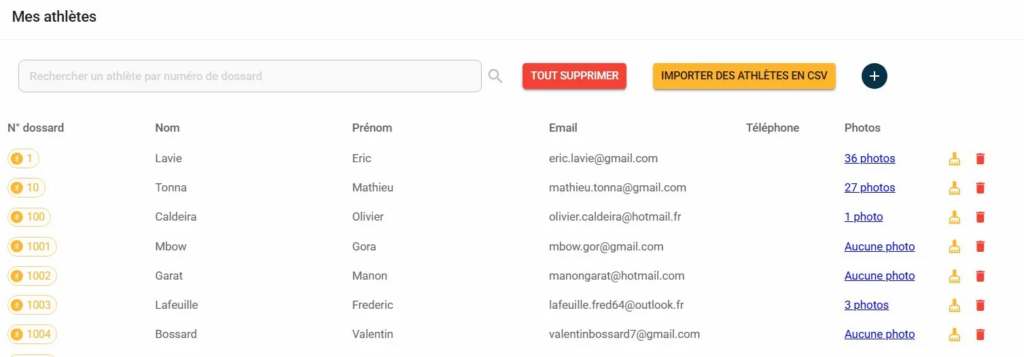
Each line corresponds to one athlete and displays:
- Race number — the number identifying the athlete, displayed on an orange badge
- First and last name — entered manually or via CSV import
- Email — used for distributing photos by email
- Telephone — optional
- Photos — the number of photos associated with this athlete, clickable to go directly to their gallery. Displays "No photos" if no photos have yet been associated with this bib number.
The shares available at the end of the line #
Two icons are available to the right of each athlete:
- Orange icon (broom) — deletes only the athlete's contact details (surname, first name, email, telephone number) without affecting their identifications or photos.
- Red icon (trash can) — deletes the athlete and all their identifications. The photos are kept in the album but are no longer linked to any athlete.
Global actions #
At the top of the list, three actions are available:
- Search for an athlete by bib number — search bar for quick access to a specific athlete
- Delete all — deletes all athletes and their identifications in a single action
- Import athletes in CSV — allows you to bulk import participants' details from a CSV file.
- + — allows you to manually create an athlete
⚠️ The “Delete All” button is irreversible. It deletes all athletes and identifications from the album. The photos are retained.
💡 An athlete who appears in the list but is marked as “No photo” means that their details have been imported via CSV but no corresponding bib number has yet been detected in the photos. Check the bib number in the CSV and the min/max settings configured during import.


