
By clicking on a photo from your administrator area, you can access its detailed information sheet. It contains all the information you need to understand how the photo was processed and what identifications are associated with it.
The header #
At the top of the page, you will find:
- The original file name (e.g.
GTVO (982).jpg) and its processing status — Analysed means that the algorithm has finished its work on this photo. - Identification badges: each badge represents an identification detected in this photo. A badge with a number corresponds to a bib number, a badge with a photo of a face corresponds to facial recognition. You can delete an identification by clicking on the cross on its badge.
- A field labelled "Add a bib number" to manually create an ID if it is missing or incorrect.
- The quick entry mode, which can be activated in the top right-hand corner, allows you to make corrections using the keyboard without having to go back to the gallery.
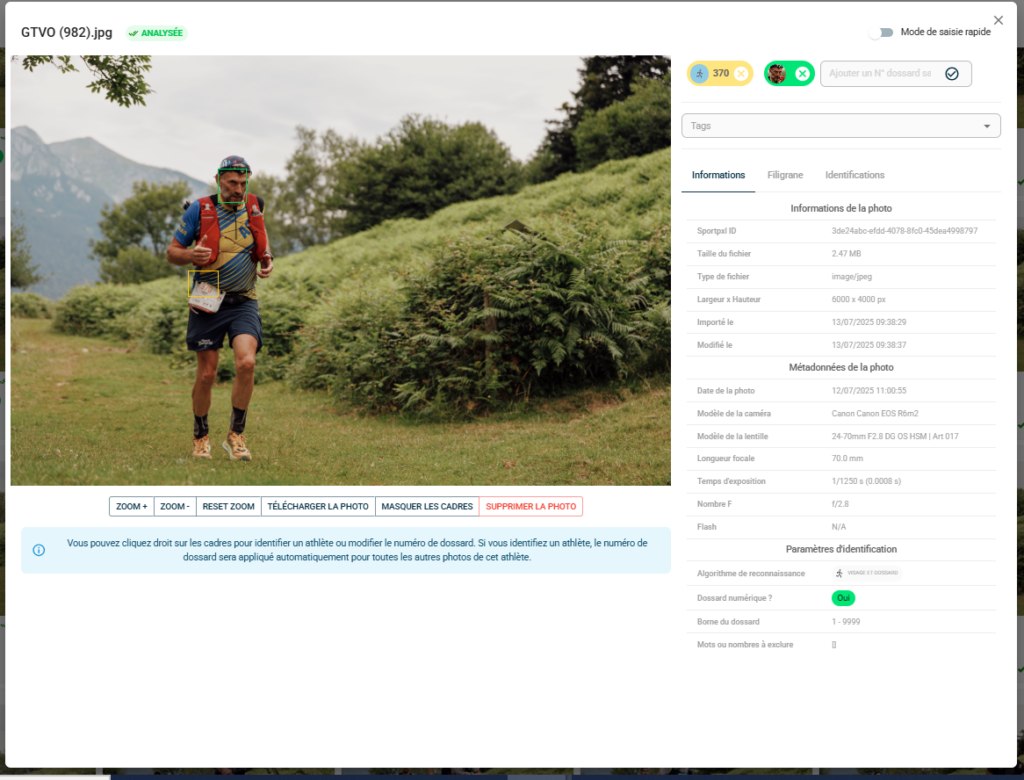
The tabs
The right-hand side of the form is organised into three tabs:
Information
Two sections are available:
Photo information — import-related data:
- Sportpxl ID, file size and type
- Dimensions (width x height in pixels)
- Import date and last modification date
Photo metadata — EXIF data from the camera:
- Date and time of photograph
- Camera and lens model
- Focal length, exposure time, aperture (F-number), flash
💡 EXIF metadata is particularly useful for finding out when a photo was taken during an event, or for checking the settings used.
Identification parameters — the algorithm parameters applied to this photo during import:
- Recognition algorithm used (e.g. face and race number)
- Race number format (numeric or alphanumeric)
- Min/max bib numbers
- Excluded words or numbers
Watermark
Allows you to check or modify the watermark applied to this specific photograph.
Identifications
List all identifications associated with this photo, with their status (green or yellow) and the option to correct or delete them individually.
Available shares #
At the bottom of the photo, several actions are available:
- Zoom in / Zoom out / Reset zoom — to inspect the detection frames superimposed on the photo
- Download the photo — to retrieve the original file
- Hide frames — to view the photo without the detection boxes
- Delete photo — permanently remove the photo from the album
💡 The coloured frames superimposed on the photo show the areas detected by the algorithm: a green frame around the face, a yellow frame around the race number. Right-click on a frame to modify or confirm the corresponding identification.


