
An identification is the link created by Sportpxl between a photo and an athlete. Understanding how this system works allows you to effectively correct errors and obtain a clean gallery.
What is identification? #
When you import photos, Sportpxl analyses each image and attempts to detect one or more athletes. Identification can take three forms:
- A face + bib number pair — the ideal case: the face and bib number were detected in the same photo and matched.
- A single face without a bib number — this occurs in three situations: with the Effective and No Bib Number algorithms, or when the bib number could not be read (closed jacket, missing bib number, athlete's back facing the camera).
- A bib alone, without a face — the number was detected but no face could be associated with it in this photo.
A photo may contain multiple identifications (e.g., two runners in the frame). An athlete may be identified in dozens or hundreds of photos in the same album.
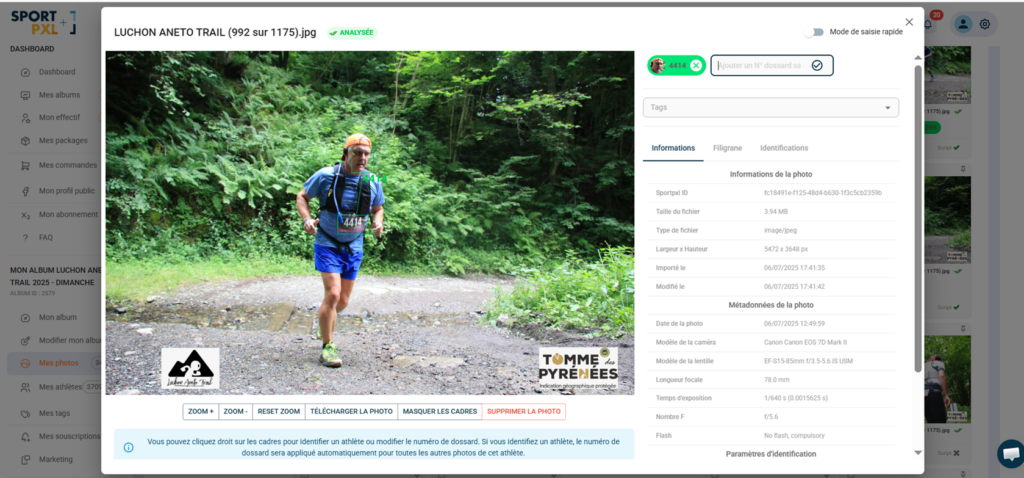
Identification statuses #
Each identification is assigned a status that reflects the algorithm’s confidence level:
- 🟢 Green — the algorithm considers that the athlete has been correctly identified. No action required.
- 🟡 Yellow — the algorithm was unable to be certain of its identification. This occurs in two main cases:
- the bib was detected on its own, without being able to be linked to a face
- several faces were associated with the same bib number (bib number misread in one of the photos), and the algorithm was unable to decide
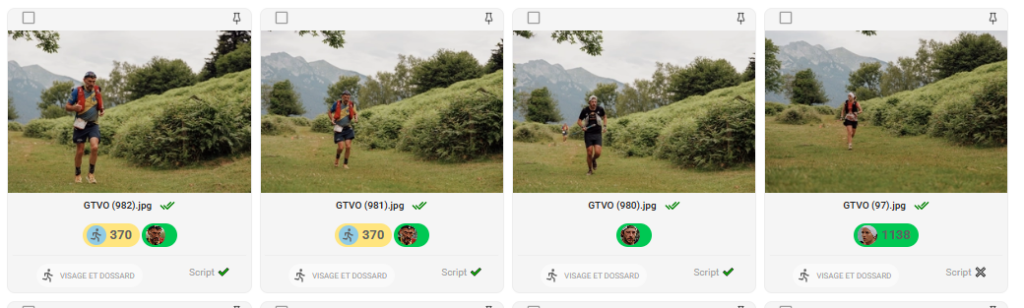
What should you do if you receive a yellow identification? #
From the athlete’s profile or directly on the photo, you have two options:
- Validate the identification — if it seems correct to you despite the algorithm's doubts.
- Correct identification — if the wrong bib number or face has been associated
In both cases, your action is automatically applied to all other photos where the same face is identified. A single correction can therefore rectify dozens of photos at once.
💡 Focus your correction work on the yellow identifications before running the correction script — this significantly improves the quality of the final result across the entire album.
The athlete’s view #
Each athlete identified in the album has a file containing all their photos. You can access it from “My Athletes”, in list view or thumbnail view.
From the athlete’s profile, you can:
- View all photos associated with this athlete
- Correct or delete incorrect identifications
- Enter or modify your contact details (surname, first name, email address)
- Trigger the sending of your photos by email
Unnamed athlete vs identified athlete #
An athlete can exist in Sportpxl in two forms:
- With race number only — Sportpxl has detected the number but does not have the participant's contact details. They appear in the list under their race number.
- With name and email address — contact details were entered manually or via CSV import. Participants can receive their photos by email and be identified by name.
💡 To automatically link names and email addresses to your race numbers, import a CSV file from “My Athletes” → “Import”. The expected format is: race number, first name, surname, email address.


