
Deleting an identification means dissociating an athlete from one or more photos. This can be done from three different places depending on the context.
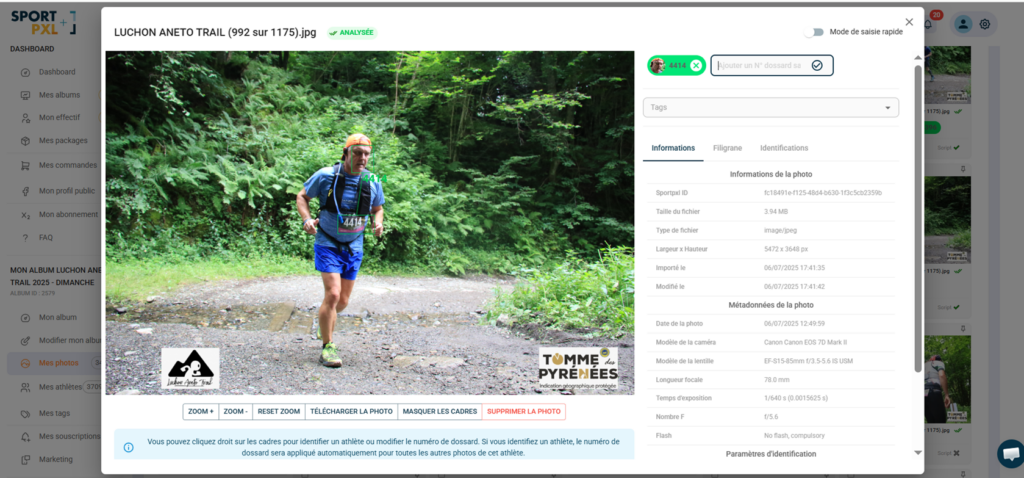
From the photo file #
To remove identification from a specific photo:
- Via the badge: click on the cross on the race number badge at the top of the file — this will only remove this identification from this photo, without propagating it elsewhere.
- Right-click on the frame: right-click on the face detection frame → 'Remove identification' — removes the identification and propagates the removal to all photos where the same face is identified.
⚠️ These two methods do not have the same effect. Select the right-click option if you wish to remove the identification from all photos of this athlete.
From the list of athletes #
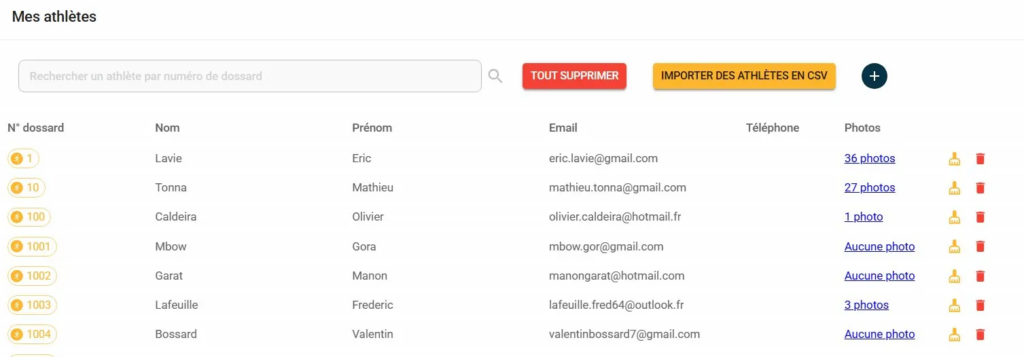
To delete an athlete and all their identifications in a single action:
- From "My athletes" → "By list", locate the athlete concerned.
- Click on the delete icon (red bin) at the end of the line.
- Confirm deletion
All identifications of this athlete are removed from the entire album. The photos themselves are not deleted.
💡 The orange icon at the end of the line (broom) allows you to delete only the athlete’s contact details (surname, first name, e-mail) without affecting their identifications or photos.
From the thumbnail view #
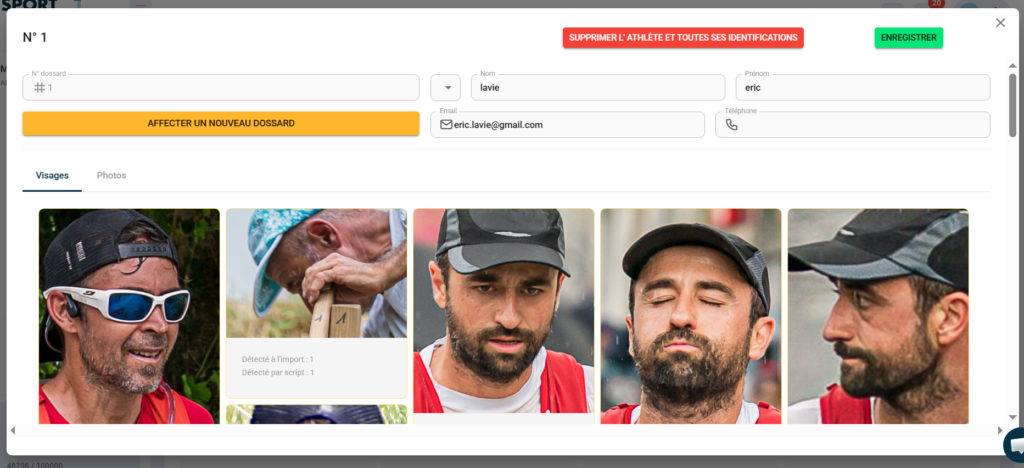
- From "My athletes" → "By thumbnails", click on the athlete's thumbnail to open their file.
- Click on "Delete athlete and all their identifications".
- Confirm deletion
Same effect as from the list: all identifications are deleted, photos are retained.
Summary #
| Method | Scope | Propagation |
|---|---|---|
| Cross on the badge (photo card) | This photo only | ✗ No |
| Right-click → Delete (photo file) | All photos of the face | ✓ Yes |
| Red basket (list of athletes) | The whole athlete | ✓ Yes |
| Athlete profile (thumbnails) | The whole athlete | ✓ Yes |


