
Sportpxl offers several ways to find your photos in a public album, tailored to each situation. Here is an overview of the available search modes.
Search by bib number #
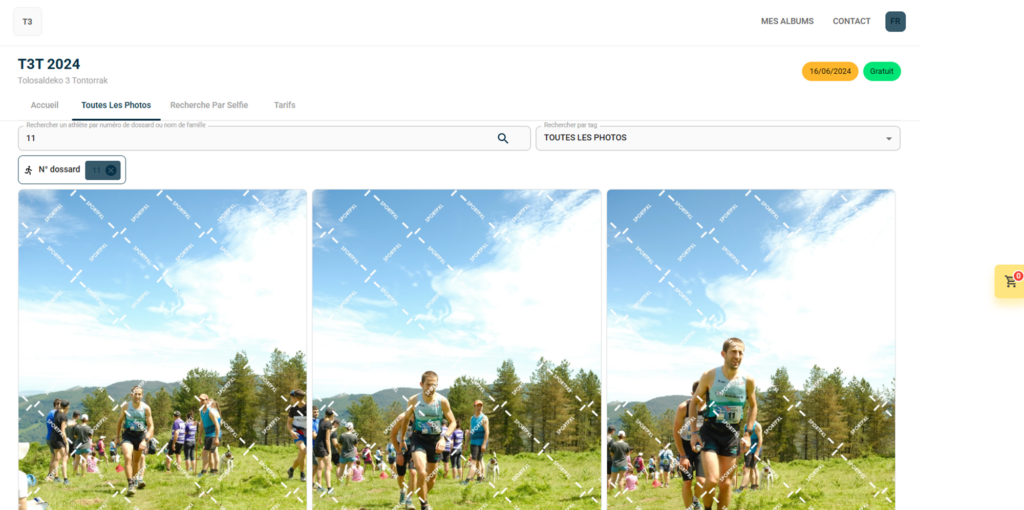
This is the fastest search mode for sports with race numbers (trail running, marathons, triathlons, cycling, etc.).
- From the public album, click on the "Bib" tab.
- Enter your race number
- All photos in which this bib has been detected are displayed instantly.
Search by participant name #
If the photographer or organiser has imported a CSV file with the names of the participants, you can search for your photos by name.
- From the public album, click on the "Name" tab.
- Enter your first name and/or surname
- The photos associated with this participant are displayed.
💡 This option is only available if the participants’ contact details have been entered in the album. If your name does not appear, please contact the photographer.
Search by selfie #
Selfie search allows you to find your photos based solely on your face, without needing to know your race number.
- From the public album, click on the "Selfie" tab.
- Allow access to your camera or import a photo of your face
- Sportpxl analyses your face and displays the corresponding photos in the album.
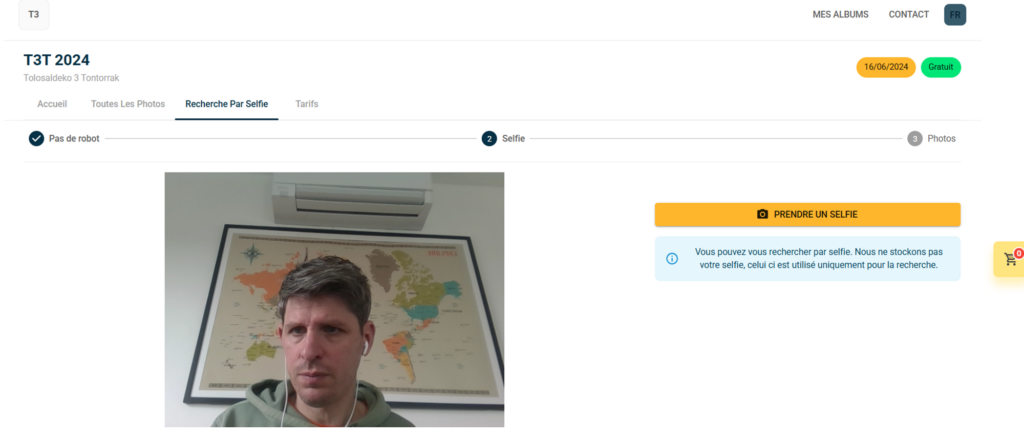
💡 This tab is only visible if the photographer has enabled facial recognition on the album. For best results, use a clear, front-facing photo without sunglasses or headwear.
Filter by tag #
Tags allow you to navigate through an album organised by events, points along the route or categories.
- From the public album, locate the filter menu by tag (at the top or side of the gallery).
- Select a tag (e.g. 'Finish', '25km', 'Podium')
- The gallery automatically filters to display only photos in this category.
💡 Tags are defined by the photographer during import. Their presence and titles vary depending on the event.


