
Table des matières
- Step 1 — Open the import from your album
- Step 2 — Select the algorithm and configure the settings
- For sports with bib numbers (trail running, marathons, triathlons, cross-country horse riding, etc.) — Face + Bib Number algorithm:
- For other types of sport (cycling, motorcycling, motor racing, etc.) — algorithm by vehicle:
- For sports without bib numbers where the participants are not known in advance (horse riding except cross-country, rugby, football, tennis, team sports, etc.) — No bib number algorithm:
- For sports clubs where participants are known in advance (training sessions, internal tournaments, seasonal matches, etc.) — Effective algorithm:
- Step 3 — Add tags and upload files
Importing photos is at the heart of the Sportpxl workflow. As soon as you upload your files, the platform automatically starts identifying participants.
Step 1 — Open the import from your album #
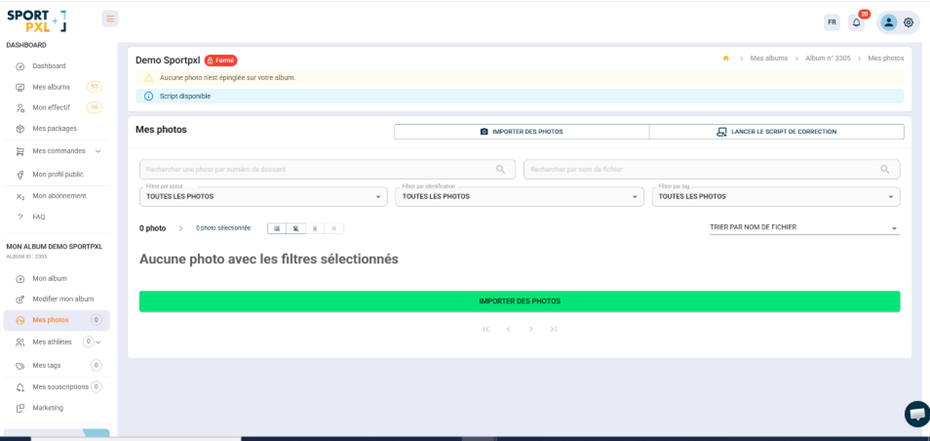
- – From your album, click on 'Import photos'.
- – An import window opens
Step 2 — Select the algorithm and configure the settings #
For sports with bib numbers (trail running, marathons, triathlons, cross-country horse riding, etc.) — Face + Bib Number algorithm: #
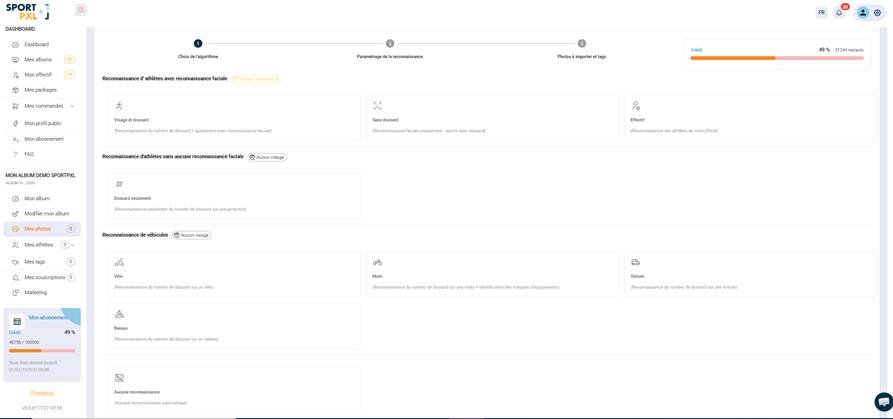
- – Select the "Face + bib number" algorithm
- – Enter the minimum and maximum bib numbers.
- – Indicate whether the bib numbers are numeric only or include letters.
- – Add the words or numbers to be excluded (e.g. '72' if the distance is 72 km)
For other types of sport (cycling, motorcycling, motor racing, etc.) — algorithm by vehicle: #
- – Select the algorithm corresponding to the vehicle
- – The algorithm will detect the number on the vehicle.
Here are the two blocks to insert into the article, after the section on vehicle algorithms:
For sports without bib numbers where the participants are not known in advance (horse riding except cross-country, rugby, football, tennis, team sports, etc.) — No bib number algorithm: #
- – Select the "Without bib number" algorithm
- – Sportpxl detects faces and creates a unique facial identification, unrelated to any number.
- – After importing, go to "My athletes" → "By thumbnail" to manually assign a name to each identified face.
💡 This algorithm is also particularly effective when combined with a photocall — see the article “Getting the most out of algorithms with photocalls”.
For sports clubs where participants are known in advance (training sessions, internal tournaments, seasonal matches, etc.) — Effective algorithm: #
- – Ensure you have created your team in 'My Team' with a reference photo for each athlete.
- – Select the "Effective" algorithm
- – Sportpxl compares the faces in the photos with the reference photos of your team and automatically identifies each athlete.
💡 The quality of each athlete’s reference photo is crucial. Choose a clear, well-lit photo taken from the front. See the article “Understanding workforce management” for implementation details.
Step 3 — Add tags and upload files #
- – Add one or more tags to organise this set of photos (e.g. '10km', 'Start', 'Finish')
- – Drag and drop your photos or click to select them
- – The import starts and the identification process begins automatically.
💡 For multi-event competitions, import photos in batches, applying the correct tags and bib number settings for each event separately.


