
The athlete page centralises all the information and photos associated with an athlete. From this page, you can correct any incorrect identification, assign a new bib number or update the participant’s contact details.
Access the athlete page #
From “My athletes” → “By list” or “By thumbnails”, click on an athlete to open their file.
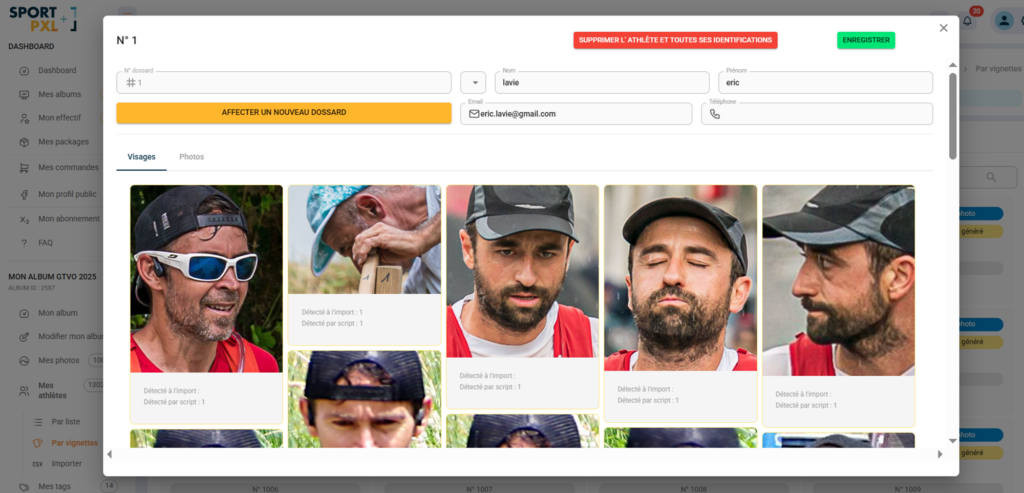
What you see #
The athlete page displays:
- The bib number associated with this athlete
- His contact details: surname, first name, email address, telephone number
- The Faces tab — the different faces detected and grouped under this profile, with the number of detections per import and per script for each one.
- The Photos tab — all photos associated with this athlete in the album
Assign a new bib number #
If the bib number associated with the athlete is incorrect:
- Click on the orange button "Assign a new bib number"
- Enter the correct number
- Click on "Save".
The change is automatically applied to all photos where this face is identified.
Correct the contact details #
Surname, first name, email address and telephone number can be edited directly in the fields at the top of the form. Click on ‘Save’ to confirm.
Check grouped faces #
The Faces tab allows you to check that the correct faces are grouped under this profile. If a face does not correspond to this athlete — for example, two athletes confused by the algorithm — you can unlink it from this view.
💡 Each face thumbnail indicates the number of detections upon import and per script. An unusual ratio (e.g., many detections upon import, zero per script) may indicate a weak identification that needs to be verified.
Remove athlete #
The red button “Delete athlete and all their identifications” permanently deletes the profile and all associated identifications. The photos themselves are not deleted — they remain in the album but are no longer linked to any athlete.
⚠️ This action is irreversible. Only use this if you have created a profile by mistake or if you have a duplicate that needs to be merged manually.


